
Documentation
Gungnr docs
Install, bootstrap, and daily operations in one place.
Introduction
What Gungnr is
Gungnr is a dockerized control panel for deploying template-based projects and exposing services through a Cloudflare Tunnel. It runs on the host and uses Docker, local templates, and a user-managed cloudflared tunnel.
Architecture overview
Host
Runs Docker, stores templates, and executes cloudflared locally.
Docker Compose
Boots API, UI, and Postgres using the generated .env.
Cloudflare Tunnel
Routes https://panel.domain to the local Nginx proxy on port 80.
GitHub OAuth
Controls login and allowlisted access to the panel.
Installation
Bootstrap the host
The installer verifies dependencies and builds the native CLI locally from source by default. The bootstrap CLI creates a tunnel, configures DNS, writes environment variables, and starts the stack.
Prerequisites
- Sudo access on the host machine.
- Cloudflare account with a domain already added.
- Cloudflare API token with Tunnel edit and DNS edit permissions.
- GitHub OAuth app credentials (Client ID and Client Secret).
-
GitHub callback URL set to
https://panel.your-domain/auth/callback. - GitHub OAuth app has Enable Device Flow toggled on for CLI bootstrap.
- Access to the host network for outbound Cloudflare requests.
Compatibility
Currently, Gungnr is only supported on Linux, and support for other OSes is planned for future releases:
- Linux (amd64/arm64) with
apt,dnf,yum,pacman,apk, orzypper.
Step 01
Set up external services
Gungnr relies on external services for authentication, tunneling and DNS management. We strongly recommend configuring GitHub OAuth app and Cloudflare credentials before running the installer. This will ensure a blazingly fast bootstrap experience.
GitHub OAuth Setup
Create a GitHub OAuth app for panel authentication.
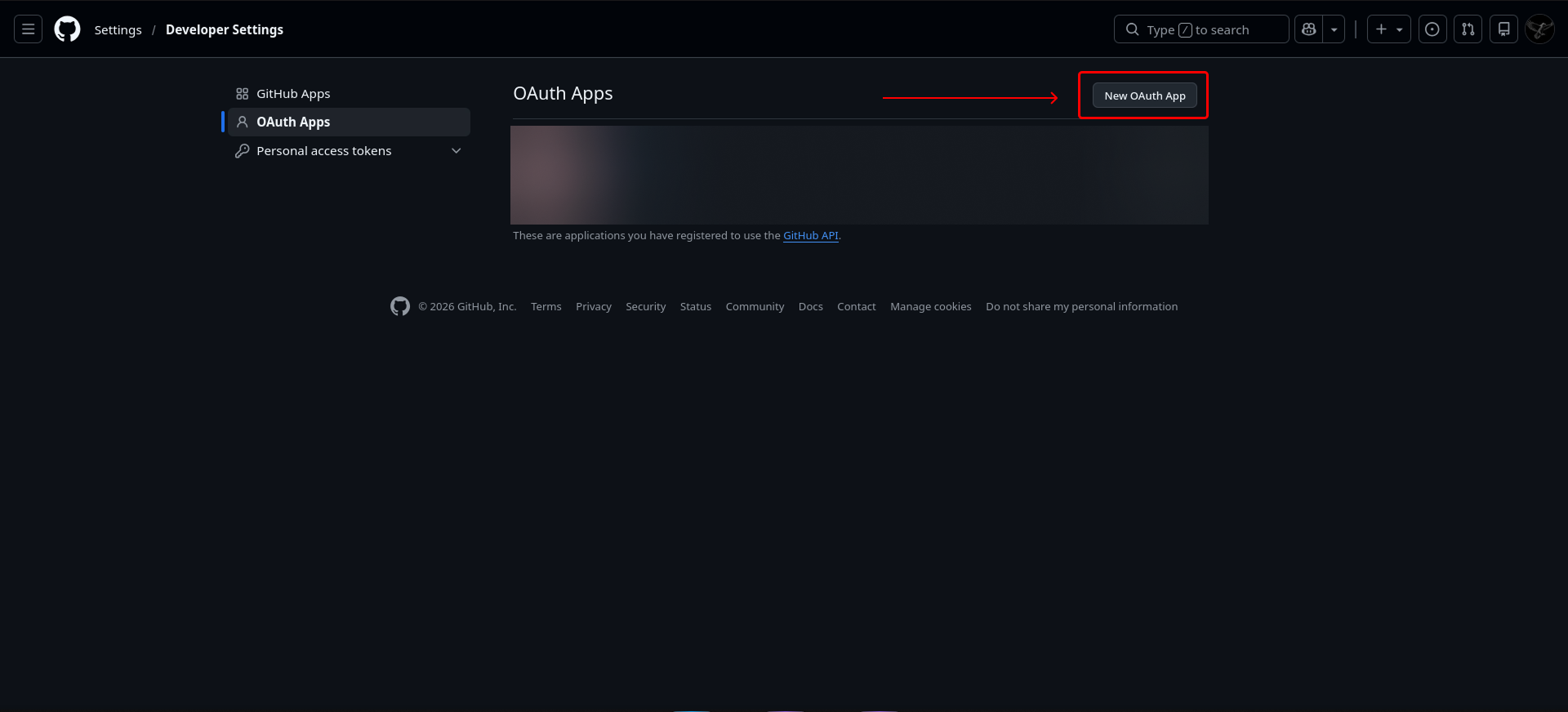
1. Create OAuth App
Open GitHub Developer Settings and click New OAuth App to register the panel. Those will be used as identity provider and RBAC for the panel, through allowlists.
2. Configure URLs
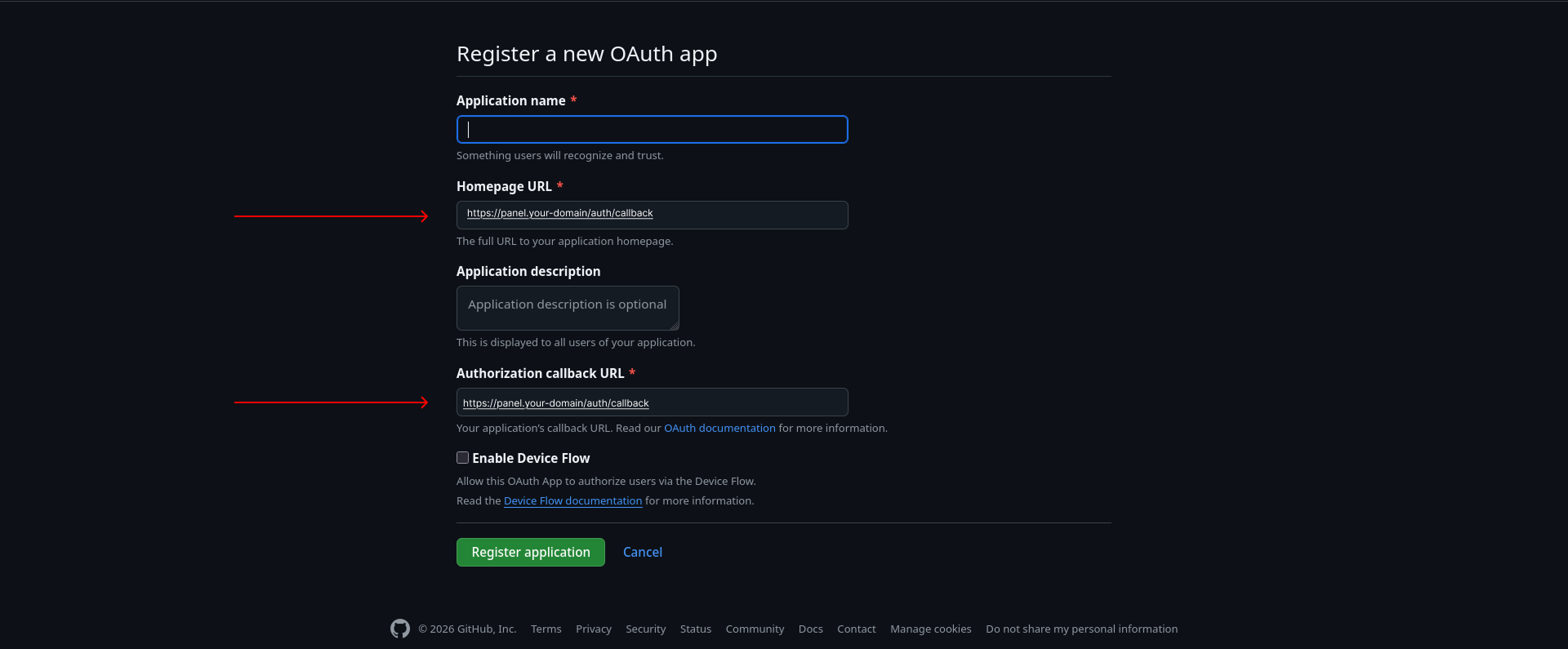
On the OAuth App form in
GitHub Developer Settings
, set the Homepage URL to your panel base URL and set the
Authorization callback URL to
https://panel.your-domain/auth/callback.
These must match the domain that will front the panel.
3. Enable Device Flow
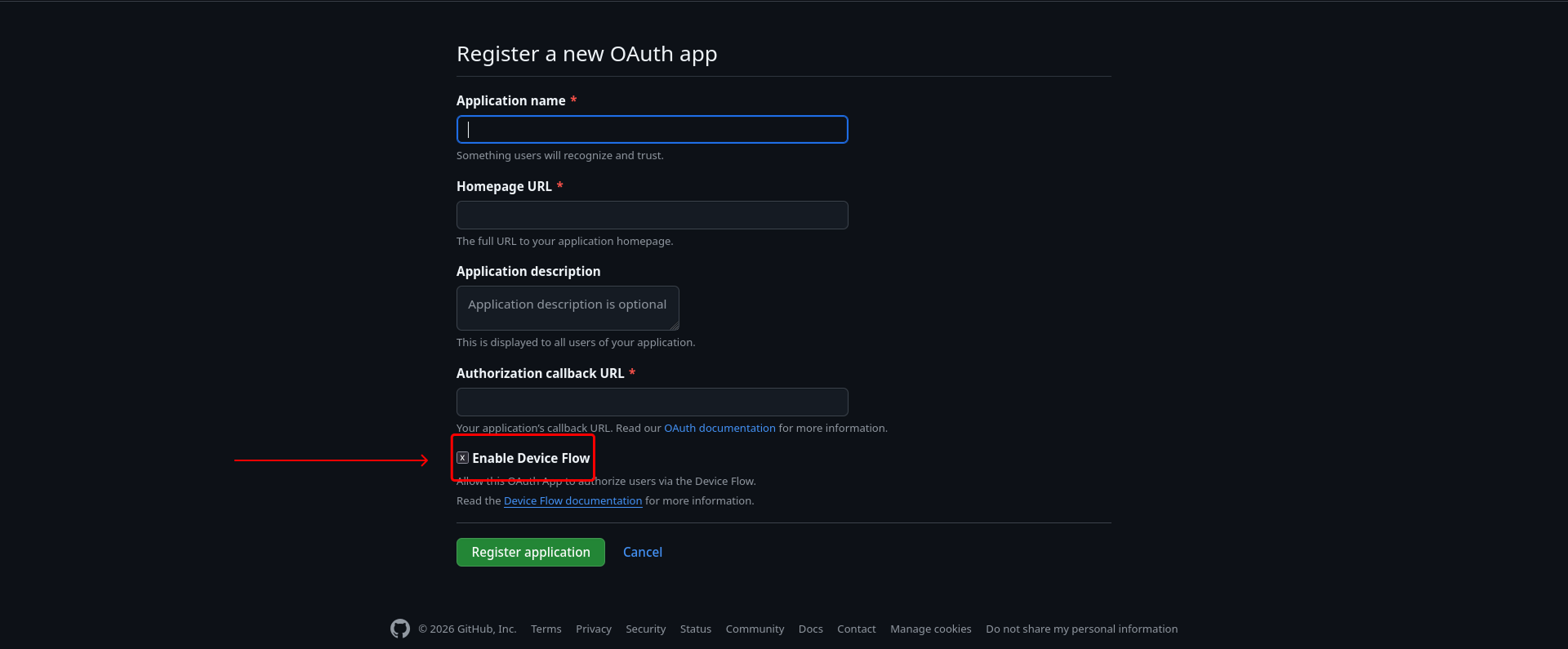
After the app is created, open it from the OAuth Apps list in GitHub Developer Settings and enable Device Flow so the CLI bootstrap can authenticate without a browser session.
4. Save Credentials
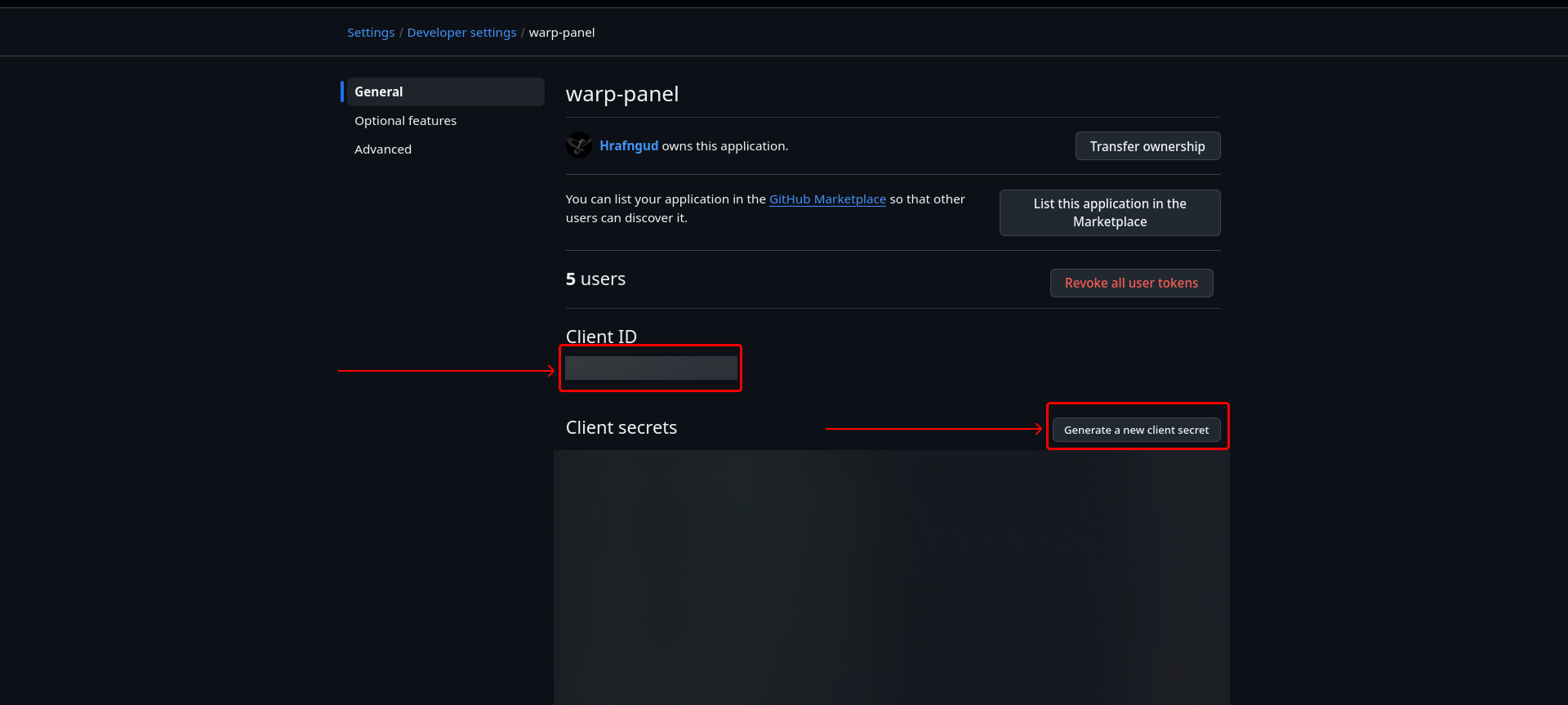
On the same OAuth App settings page in GitHub Developer Settings , copy the Client ID, then generate a Client Secret and store it safely for the bootstrap prompts.
Cloudflare Setup
Configure Cloudflare for tunnel routing and DNS management.
1. Add Domain
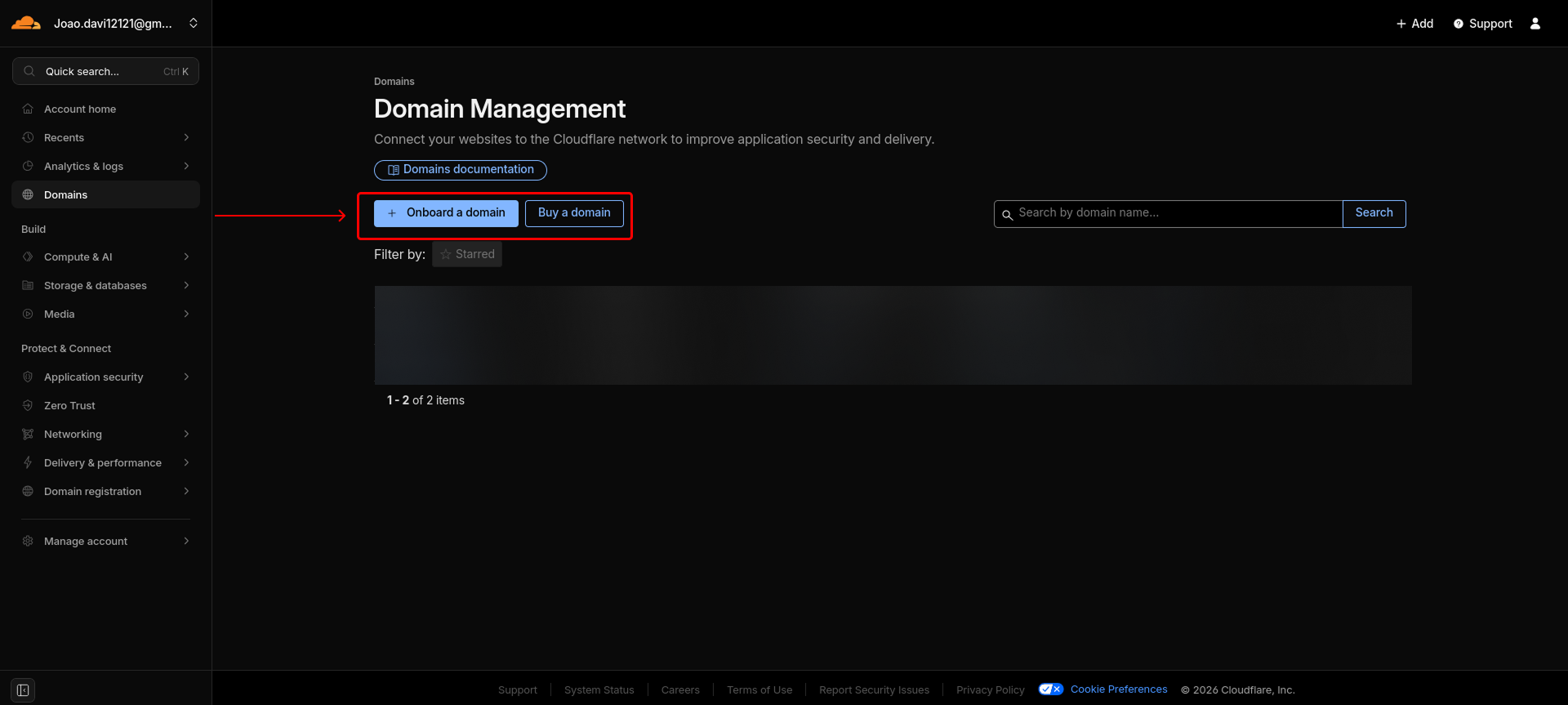
Log in to the Cloudflare dashboard and use Onboard a domain to add your apex domain. Update your registrar nameservers so the zone becomes Active.
2. Create API Token
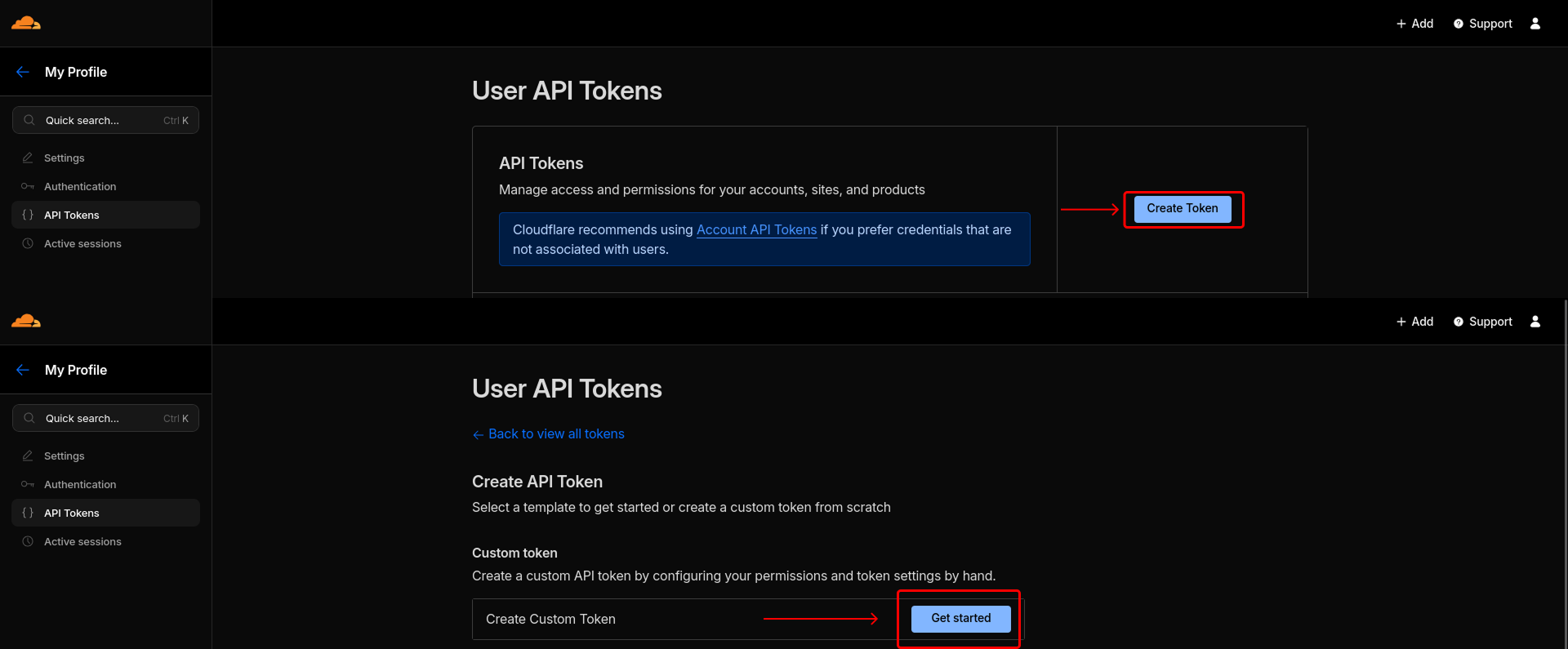
Open API Tokens in your Cloudflare profile and click Create Token.
3. Grant Permissions
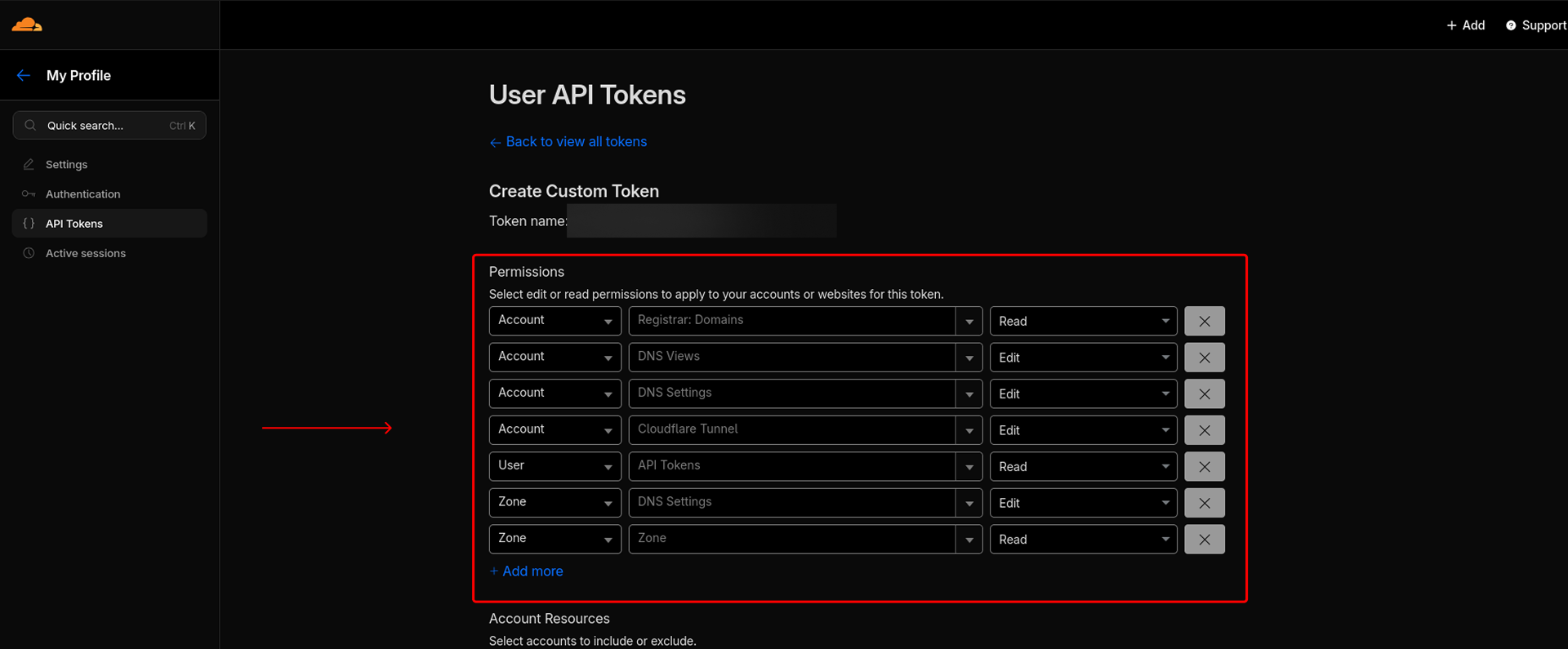
During token setup in API Tokens , scope the token to the account that will host the panel and scope to all zones. Aditionally, scope to all accounts to fetch authorized zones from other Cloudflare accounts you're admin if needed. Confirm the token can correct Scopes listed here:
-
All accounts
- Registrar: Domains — Read
- DNS Views — Edit
- DNS Settings — Edit
- Cloudflare Tunnel — Edit
-
All zones
- DNS Settings — Edit
- Zone — Read
-
All users
- API Tokens — Read
4. Save Token
Copy the token value and store it safely, before leaving the API Tokens page. You will paste it during bootstrap, and it is only shown once.
Step 02
Run the installer
Downloads and runs install.sh to verify dependencies and build the native CLI locally.
wget -qO /tmp/gungnr-install.sh https://raw.githubusercontent.com/Hrafngud/gungnr/main/install.sh && chmod +x /tmp/gungnr-install.sh && /tmp/gungnr-install.sh
Set GUNGNR_CLI_URL only if you want the installer to use a hosted native binary instead of a local source build.
Step 04
Run bootstrap
The CLI prompts for GitHub, Cloudflare, and DNS inputs.
Ensure your GitHub OAuth app has Enable Device Flow toggled on before continuing.
gungnr bootstrapStep 03
Open the panel
The CLI prints the panel URL after the health check succeeds.
https://panel.your-domainBootstrap outputs
Data root
~/gungnr
Templates, state, and .env live here.
Cloudflared
~/.cloudflared/config.yml
Ingress rules with a 404 catch-all.
Panel env
~/gungnr/.env
OAuth, Cloudflare, and paths.
Panel URL
https://panel.your-domain
Printed at the end of bootstrap.
Tunnel auto-start watchdog
Reboot fallback is optional during bootstrap and is also manageable later with
gungnr keepalive. When enabled, Gungnr installs system-level systemd reboot recovery
and executes this lifecycle after host startup: panel compose rebuild, tunnel restart, panel
health check, then sequential project stack rebuilds with health checks between each restart.
/etc/systemd/system/gungnr.service+/etc/systemd/system/gungnr-keepalive.timer~/gungnr/state/cloudflared-run.sh(starts keepalive recovery)~/gungnr/state/cloudflared-ensure.sh(invokes the recovery run script)
gungnr keepaliveUsage
Operate the panel confidently
Once bootstrap completes, the panel is ready. The key flows are listed here so you can run daily operations without digging through UI menus.
First login
- Open the panel URL printed by bootstrap.
- Log in with GitHub. The bootstrap user is seeded as SuperUser.
- Add additional users from the allowlist in the panel if needed.
OBS: Gungnr currently have a simple RBAC implementation where SuperUsers can manage everything, Admins have quite same privileges, but can't assign roles, and normal users can perform deployments and jobs, but can't add people to the allowlist. This feature is planned to be expanded in future releases. But you can feel free to fork and customize the middleware permissions to your personal needs.
Deploy flows
- Create from template: uses the GitHub App configuration to start a fresh project from a curated fullstack template. Currently we only feature a Vue + Go + PostgreSQL opinated template, but further, new templates will be added with different stacks.
- Deploy existing: forwards a local application running on localhost:PORT to a subdomain. Useful to front-end quick view from multiple devices
- Quick services: pulls a Docker image, runs it as a container with published host ports, and forwards it to a tunnel for fast service testing.
Logs + status
- Use the Jobs page to monitor deployments and tunnel changes.
- Container logs stream under Host Settings.
- Audit log records each system action.
Docker visibility states
Docker-facing views now distinguish between a healthy empty daemon and degraded Docker visibility. A warning does not automatically mean Docker is empty or stopped.
Healthy empty state
/health/dockerstaysokand can show a real container count of0./api/v1/host/dockerreturns an empty container list without degraded diagnostics./api/v1/host/docker/usageshows real totals, even if those totals are small.
Degraded visibility
/health/dockercan returnwarningwhile still showing configured Docker posture such as DB publish and network guardrail state./api/v1/host/dockercan return200withcontainers: []plusdiagnostics[]; treat that as an empty inventory shell, not proof the daemon has no containers./api/v1/host/docker/usagecan return a zeroed summary shell with diagnostics, or preserve global totals while degrading onlyprojectCountsfor a project-scoped read.
In the panel, these warnings surface through the Home header, Overview, Host Settings, and Container Logs views. When diagnostics are present, prefer the warning text over the placeholder counts.
First remediation checks
- Compare the panel warning with host commands:
docker version,docker ps, anddocker system df. - If the host commands work but the panel still warns, check the Docker socket contract first. The hardened panel depends on the live
/var/run/docker.sockgroup id matching the generated runtime env. - Run
gungnr restartto refresh the panel runtime env and rebuild the panel stack when socket-group drift is suspected. - If the warning persists, inspect API and worker logs because bridge-backed Docker reads may be failing even though the daemon itself is healthy.
Project workspace
The project detail page is now an operator workspace with tabs for Workbench, Runtime units, Environment, Archive, and Activity timeline.
- Runtime units includes per-project CPU, RAM, and disk usage indicators.
- Environment tab edits project
.envvalues from the UI. - Archive tab is contract-frozen around one operator flow: backend-authored preview first, privileged confirmation modal second, queued async archive job handoff third.
- Admin and superuser accounts can refresh the live archive preview and queue cleanup; non-admin users remain read-only with rationale and no destructive fallback path.
- Activity timeline keeps project job history and logs in one place.
Key APIs: GET/PUT /api/v1/projects/:name/env, GET /api/v1/host/stats,
GET /api/v1/projects/:name/archive/plan, POST /api/v1/projects/:name/archive.
Archive preview is the authoritative backend-authored cleanup scope. It returns defaults, candidate
containers, managed hostnames, service-exposure ownership for forward_local and
quick_service, exact ingress-rule matches, DNS candidates, warnings, and the toggle-aware
cleanup counts visible in Project Detail before any mutation is queued.
Queueing archive cleanup always goes through the dedicated confirmation modal and typed confirmation
phrase. The modal surfaces destructive volume-deletion copy when that option is enabled and never runs
cleanup synchronously from the Archive tab. When submitted, the backend rebuilds the archive plan from
current project state and queues the existing project_archive job, so follow-up happens on
the job page or in the project activity timeline.
- Container, ingress, and DNS cleanup stay toggle-aware and backend-planned at queue time; treat the preview as read-only guidance and the queued job as the authoritative execution handoff.
- Ingress cleanup removes only the exact planned managed rule matches and still preserves the local catch-all
http_status:404fallback. forward_localcontributes hostname-owned ingress and matching tunnel CNAME cleanup only.quick_servicein internal mode contributes container cleanup only; ingress and DNS stay out of scope.quick_servicein host-published mode contributes container cleanup plus managed hostname cleanup when ownership resolves deterministically.- Cloudflare DNS deletion remains limited to CNAME records that still point to
<tunnel-id>.cfargotunnel.com.
Workbench compose workflow
Workbench backend and frontend are shipped. Project Detail now exposes snapshot, catalog-managed optional services, ports/resources mutation controls, preview/apply, dependency graph, and backup restore flows.
API surface
GET /api/v1/projects/:name/workbench,
GET /api/v1/projects/:name/workbench/graph,
GET /api/v1/projects/:name/workbench/catalog,
POST /api/v1/projects/:name/workbench/import,
POST /api/v1/projects/:name/workbench/ports/resolve,
POST /api/v1/projects/:name/workbench/ports/mutate,
POST /api/v1/projects/:name/workbench/ports/suggest,
POST /api/v1/projects/:name/workbench/services,
DELETE /api/v1/projects/:name/workbench/services/:serviceName,
PATCH /api/v1/projects/:name/workbench/services/:serviceName/resources,
POST /api/v1/projects/:name/workbench/compose/preview,
POST /api/v1/projects/:name/workbench/compose/apply,
GET /api/v1/projects/:name/workbench/compose/backups,
POST /api/v1/projects/:name/workbench/compose/restore.
NetBird isolation control plane
NetBird is shipped with a dedicated panel page and backend policy orchestration for
legacy, mode_a, and mode_b.
- UI route:
/netbirdwith status, ACL graph, mode planning, and apply controls. - Authenticated users get read-only status and ACL visibility; mode config, planning, apply, and policy reapply remain admin-only.
- Backend APIs: status, config, ACL graph, mode plan/apply, and policies reapply.
- CLI operators can run
gungnr netbird statusandgungnr netbird mode --set ...against the same backend surface.
Mode behavior
legacy: panel and project ingress listeners stay on legacy binds (0.0.0.0); no Gungnr-managed NetBird groups or policies remain.mode_a: panel listener moves towg0;127.0.0.1is added only whenallowLocalhostis enabled. Project ingress remains on legacy binds.mode_b: panel follows Mode A, and only the selectedmodeBProjectIdsmove project ingress listeners towg0(plus optional127.0.0.1). Unselected projects stay on legacy binds.
Operator flow
- In the panel, save NetBird mode config first: API token is always required for apply/reapply, while host peer ID and admin peer IDs are additionally required for
mode_aandmode_b. - Run dry-run planning before apply. The planner uses
targetMode,allowLocalhost, and Mode B project assignments to show policy operations, listener rebindings, redeploy targets, and warnings. - Apply remains asynchronous. The queued
netbird_mode_applyjob performs plan, managed policy reconcile, listener rebinding, redeploy, and summary logging. - Use policy reapply only to reconcile Gungnr-managed groups and policies for the current effective mode. It does not switch modes, rebind listeners, or redeploy stacks.
Status, ACL, and rollback notes
/netbirdstatus shows connectivity, peer identity, last policy sync, managed counts, API reachability, andcurrentModevsconfiguredMode. Drift is reported when the latest successful apply does not match configured mode or Mode B assignments.- The ACL graph visualizes the effective Gungnr-managed NetBird policy model only. It is not a full Docker/runtime network map.
- Deterministic rollback/disable path: apply
legacy. Gungnr removes its managed NetBird groups/policies, returns panel and previously assigned Mode B project listeners to legacy binds, and restarts only the panel/project targets whose listener bindings changed. - Rollback does not uninstall the NetBird client, delete the enrolled peer, erase saved NetBird mode config, delete project data or volumes, or modify unrelated NetBird resources outside the Gungnr-managed names.
gungnr netbird status [--api-url URL] [--auth-token TOKEN]

gungnr netbird mode --set <legacy|mode_a|mode_b> [--allow-localhost] \
  [--api-url URL] [--auth-token TOKEN] \
  [--netbird-api-base-url URL] [--netbird-api-token TOKEN] \
  [--host-peer-id ID] [--admin-peer-ids id1,id2] [--yes]
CLI status reads the panel status API and prints connectivity, policy-sync, and managed-resource blocks.
Panel auth can come from --auth-token, GUNGNR_API_TOKEN, or a CLI-issued test token from ~/.gungnr/.env. CLI mode switching always requests a dry-run first, prints operation counts and warnings, then polls the queued job until a terminal outcome is reached.
CLI commands
Current operational command surface:
gungnr version
gungnr bootstrap [--plain]
gungnr restart
gungnr tunnel run
gungnr keepalive
gungnr netbird status [--api-url URL] [--auth-token TOKEN]
gungnr netbird mode --set <legacy|mode_a|mode_b> [--allow-localhost] [--api-url URL] [--auth-token TOKEN]
gungnr uninstall [--yes]